Ozarkapedia:How to add a new river
Jump to navigation
Jump to search
Intro[edit source]
This page can help you add a new river to Ozarkapedia. It's meant for technical folks who don't mind dealing with code. If that's not you, just drop a message to User:Rootwad and he can get it set up pretty quick. It's a lot easier to add stuff to an existing river by following one of the related guides.
Steps[edit source]
- Create a GeoJSON page to hold the map data for the river path
- Cruise over to OpenStreetmap.org, and use the search feature to get it to show the entire river from the source
- There may be multiple results. Click through them until it looks like it's showing the entire river.
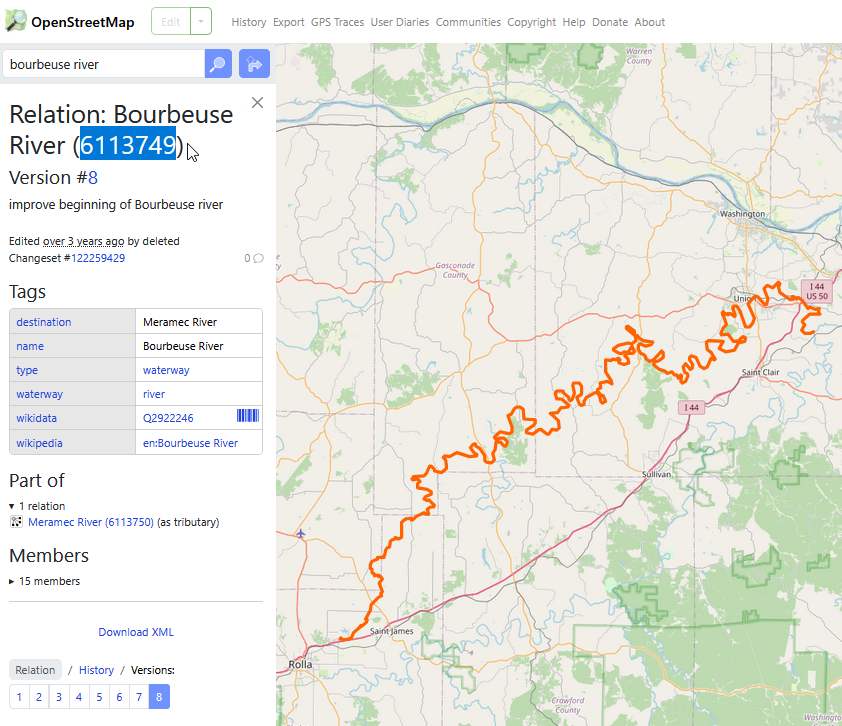
- Copy the 'Relation ID' or 'Way ID'
- Open a new browser tab to https://overpass-turbo.eu/
- Modify the following query to contain the relevant Relation ID (or Way ID) that you copied in the previous step.
[out:json][timeout:60]; relation(id:6113750); way(r); (._; >;); out geom;
[out:json][timeout:60]; way(id:448418405); (._; >;); out geom;
[out:json][timeout:60]; ( relation(7443544); way(id:512659210,301505732,1354541102); ); (._; >;); out geom;
- Click Export at the top, then under Data, look for GeoJSON and click the Copy button on that line
- Open a new tab to www.ozarkapedia.org/wiki/GeoJson:<RiverName> where <RiverName> is replaced with the river you want to create.
- Click "Create from GeoJSON Source"
- On the new page, delete all the existing text
- Paste in the GeoJSON we copied in the previous step
- Click "Show Preview", and if everything looks good, "Save Page" at the bottom of the screen
- Clean up the GeoJson by hand, reduce it to a single Feature.
- Use a GeoJSON tool to examine the current file.
- Using the ID attached to each feature, identify the proper order for the features, starting at the river source and ending at its terminus
- Concatenate the multiple features into a single feature with no duplicated coordinates.
- Save the new file in Ozarkapedia.
- Try ctrl-f to search for "node"; OSM likes to tag river ford crossings as a point and we don't need those cluttering up the map.
- Cruise over to OpenStreetmap.org, and use the search feature to get it to show the entire river from the source
- Create the page for the river itself by opening the URL and clicking "Create from Source"
- Example: https://www.ozarkapedia.org/wiki/Big_River
- At the top of the page, say one sentence about the river,
- then one the last two lines, add the Template functions. Modify them to include the correct river name.
{{Template:River|River=Big River}}{{Template:Big River Distances}}- This is a chart that can be used to calculate the distance between two ramps. We'll talk about this in a separate article.
- Save the page.
- We've created the river, but the map won't draw until we add some points of interest. We do this by creating a page for the point of interest.
- The following types of page are added to the map for the river. Follow the link for instructions on adding each type of page.
- Create pages for all of the ramps.
- Add gauge data and ramp photos to the ramp pages
- Photos aren't mandatory to create a page, we can always fill those in later,
- but the gauge data is practically automated if you just use the Template:River Section Gauges
- Divide the river into sections of about 10-20 miles between ramps, and create a page for each section
- Ozarkapedia:How to add a new river section
- Additionally, set
[[Category:<section name>]]
on all associated POI.
- Update the Distance Chart
- Create a new page, like Template:<River> Distances. For example, Template:Big River Distances, Template:Jacks Fork Distances
- Open a new browser window to https://rivertools.ozarkapedia.org/milechartgen/
- Add a selection of accesses - on small rivers, you can add them all, but large rivers may need to add only certain accesses, or generate multiple tables.
- Click Generate
- Click Copy to Clipboard
- On your new Distance Chart page at Template:River Distances, paste as source and save
